 Cart is empty
 How it Works
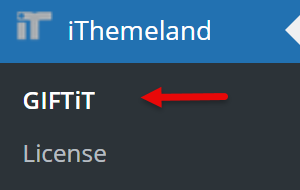
✅ Step 1: Go to GIFTiT → Rules
From your WordPress Dashboard, navigate to the GIFTiT menu and open the Rules tab.
✅ Step 2: Click "Add Rule"
Create a rule based on either:
Subtotal
Item Quantity
Promotion Messages are only available for Subtotal or Item Quantity-based discount rules.
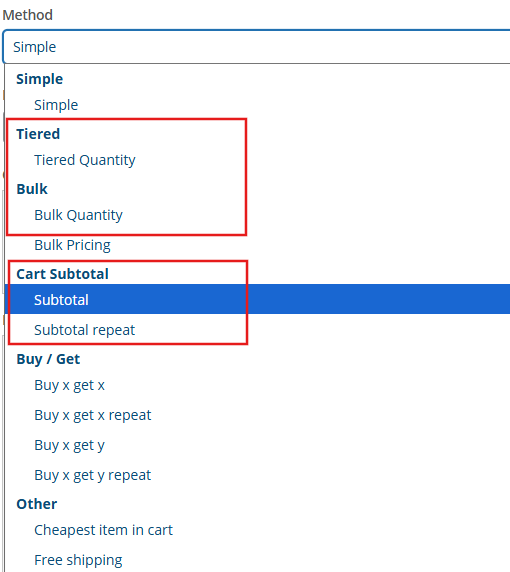
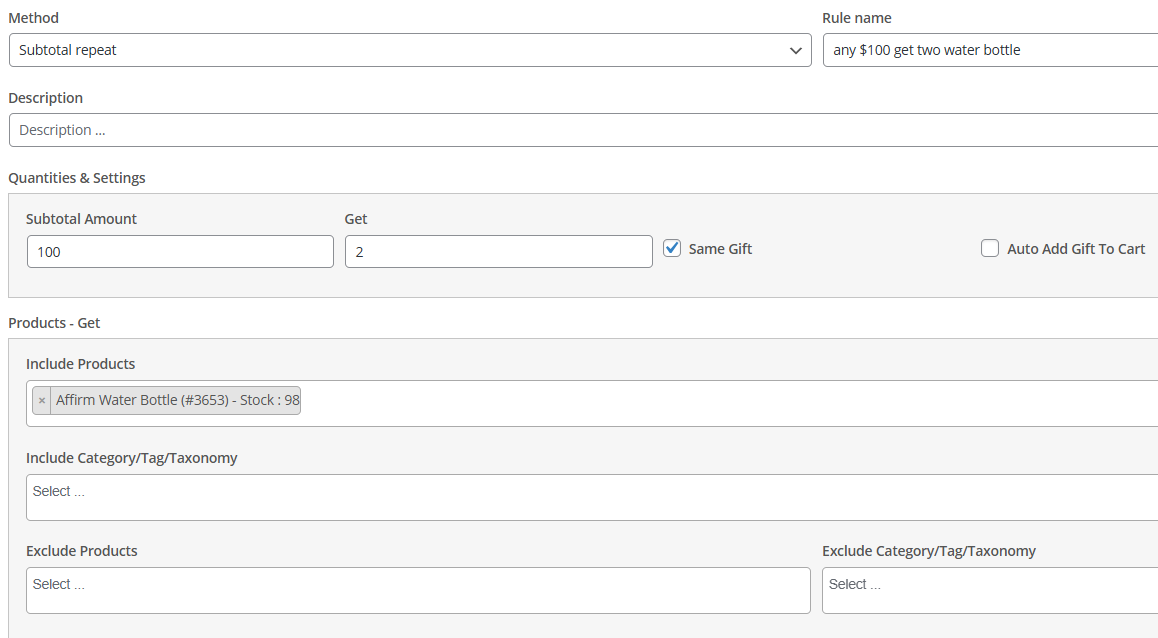
✅ Step 3: Configure your Rule as you want
✅ Step 4: Enable Promotion Message
Enable the Promotion Message option for the rule.
Set the “Display From” amount – the cart subtotal at which the message or progress bar should appear.
- Customize the message – use
{difference_amount}to show how much more the customer needs to spend to get the gift.

✅ Step 5: Configure Display and Appearance
Go to the Settings and Promotion tab to choose how the message is shown:
Choose pages to show the Promotion:
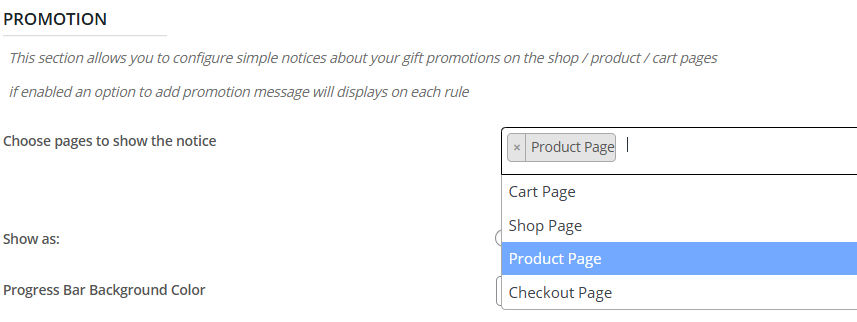
Choose how to show it :
Popup, Notice or Progress Bar

- Show Get Products: enable this if you want to display the gift in the notice.
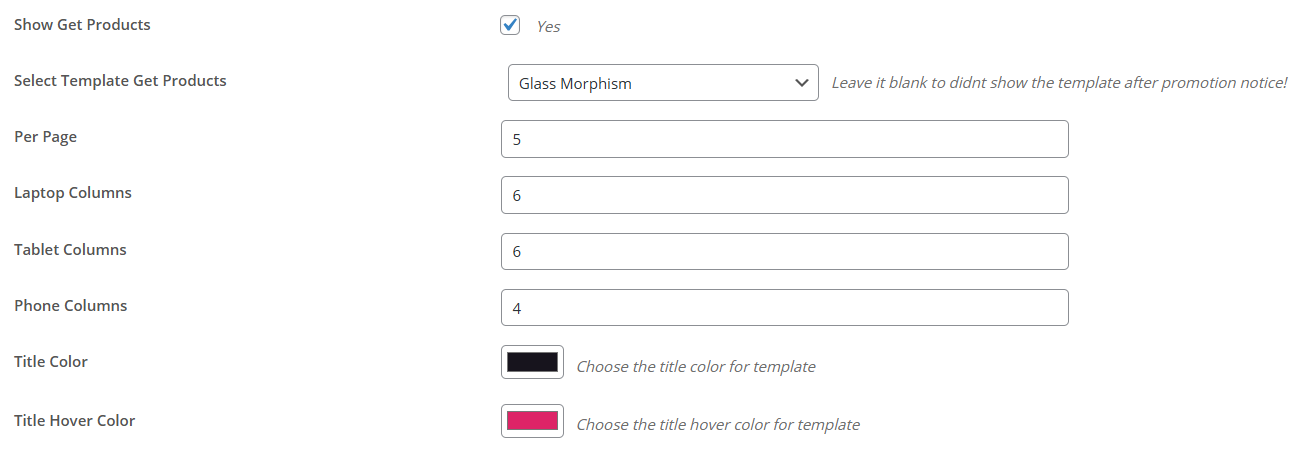
Select Template: Choose from Gift Box, Glass Morphism, Flex Items, or Tooltip.
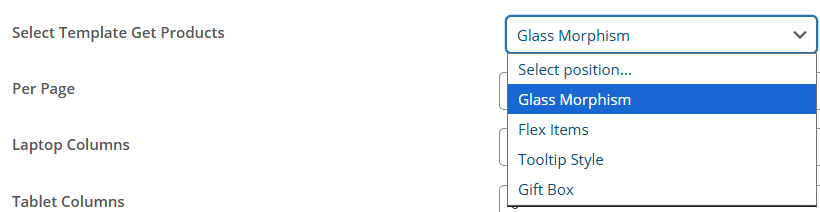
- Show Get Products: enable this if you want to display the gift in the notice.
✅ Step 6: Save Changes
✅ Step 7: See It in Action
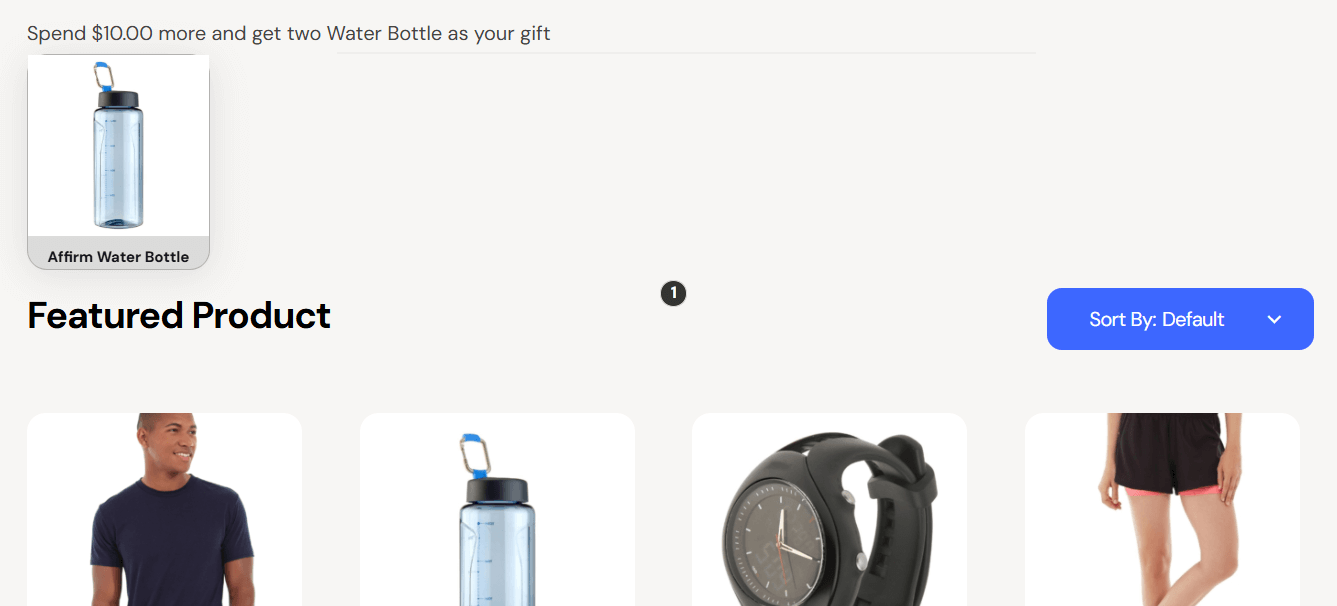
Add products to the cart until the subtotal exceeds the “Display From” amount (e.g., $50).
The Notice will appear automatically, and Customers can see how close they are to receiving the gift.